Shapes & Palette
The Shapes panel holds packs of typed shapes — a notation's vocabulary, drawn once and styled by the theme. Pick a diagram type on File ▸ New and the right packs are loaded for you; add more with Shape packs…; import draw.io, Excalidraw and Mermaid files and the shapes arrive already typed.
Start from a diagram type
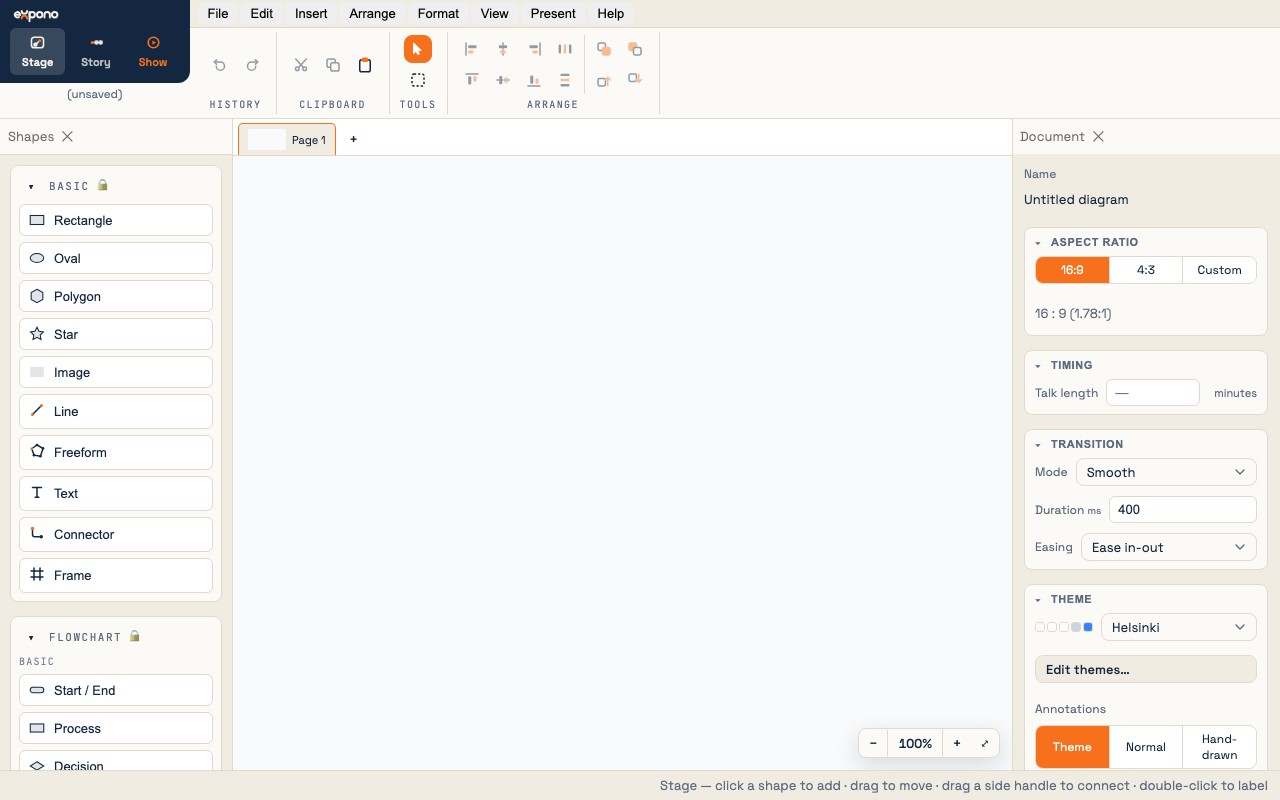
A fresh install loads no packs: the palette shows the Basic drawing tools and nothing else. The door to a pack is File ▸ New ▸ a diagram type. Each type is a row that opens a blank document and loads the packs that notation is drawn with:
| File ▸ New ▸ | Packs loaded | What you get |
|---|---|---|
| Flowchart | Flowchart | The ISO 5807 symbol set as Mermaid spells it — 41 shapes in Basic and Advanced sections |
| Architecture | Architecture | Vendor-neutral system and cloud vocabulary — compute, data, messaging, connector and clients, with nesting boundaries |
| Mind map | Mind map | Central topic, topics, subtopics, leaves and the curved branch; also switches Auto-arrange to the mind-map style |
| Software | UML · C4 · ER · Data flow | The four software-engineering notations from one seat — class, state, activity, sequence, use case and component diagrams; C4 context to component; Chen and crow's-foot ER; Yourdon and Gane–Sarson data flow |
| Org chart | People charts | Person cards, vacancies, assistants, departments and reporting lines |
| Family tree | People charts | The same pack's genogram and kinship sections, with Auto-arrange set to the tree style |
| Network | Network | Devices drawn as their symbols, with typed Ethernet, fibre, wireless, WAN and VPN links |
| BPMN | BPMN | BPMN 2.0 — events, activities, gateways, data, pools and lanes, and the typed flows |
| Schematic | Electronics · Logic gates | ANSI / IEEE circuit symbols and the distinctive-shape logic gates, flip-flops and combinational blocks |
Plain File ▸ New (⌘N) opens a blank document with whatever packs you already have loaded. A type row sets the palette up for that diagram: the shipped packs it does not use are unloaded, and its own are loaded. Packs you imported or made yourself always stay, as does a shipped pack you have unlocked to edit.
The packs
Twelve packs ship with expono. Every one is original vector geometry painted by the theme — no vendor icons, no emoji — so a diagram restyles wholesale when you switch themes. A pack's palette group is split into sections (Flowchart's Basic and Advanced, UML's Class · State · Activity · Sequence · Use case · Structure · Relationships · Containers) so a notation's vocabulary reads as its diagram types do.
| Pack | Notation | Sections |
|---|---|---|
| Flowchart | ISO 5807, as Mermaid and draw.io spell it | Basic · Advanced |
| Architecture | System and cloud architecture, vendor-neutral | Compute · Data · Messaging · Connector · Clients · Boundaries |
| UML | UML 2.5 | Class · State · Activity · Sequence · Use case · Structure · Relationships · Containers |
| C4 | The C4 model | Elements · External · Relationships · Boundaries |
| ER | Chen and crow's-foot entity-relationship | Entities · Attributes · Relationships · Cardinality |
| Data flow | Yourdon / DeMarco and Gane–Sarson, plus the threat-model trust boundary | — |
| BPMN | BPMN 2.0 | Events · Activities · Gateways · Data · Artifacts · Flows · Containers |
| Network | Network topology | Devices · Links |
| People charts | Org charts and family trees | Cards · Units · Genogram · Reporting · Family |
| Mind map | Mind maps | — |
| Electronics | ANSI / IEEE 315 circuit schematics | Passive · Semiconductors · Sources & ground · Switches & loads · Wiring |
| Logic gates | ANSI distinctive-shape digital logic | Gates · Flip-flops · Combinational |
Some of what a pack gives you is not a shape: typed connectors (a UML generalization, a BPMN message flow, a network fibre link) carry their caps and dash with them; frames (a BPMN pool, a C4 boundary, an activity partition) are containers that move with their members; and caps such as the crow's feet can be put on any connector's end from the inspector.
Flowchart — Basic
The most common flowchart symbols, in usage order:
| Shape | Symbol | Meaning |
|---|---|---|
| Start / End | Stadium | Entry and exit points (terminator) |
| Process | Rectangle | A step, action, or operation |
| Decision | Diamond | A yes/no or conditional branch |
| Input / Output | Parallelogram | Data input or output |
| Document | Wavy-bottom rect | A document or report |
| On-page reference | Circle | A jump to elsewhere on the page |
Flowchart — Advanced
The rest of the ISO 5807 symbol set — the same vocabulary Mermaid's @{ shape } syntax names, so a flowchart round-trips through Mermaid and draw.io:
- Predefined Process, Preparation, Alternate Process, Database
- Manual Operation, Manual Input, Priority
- Multiple Documents, Multiple Processes, Display, Stored Data
- Direct Access Storage, Disk Storage, Internal Storage, Off-Page Reference
- Delay, Loop Limit, Merge, Extract, Collate, Sort
- Summing Junction, Or, Junction, Paper Tape, Card, Note, Annotation, Communication Link
Adding and removing packs
File → Shape packs… — or the ⊕ Shape packs… link at the foot of the palette — lists every pack expono knows: the twelve above and any you have imported. Select one to see its description, its counts and a preview of its real shapes, then Load it and its group appears in the palette at once. Unload takes it out of the palette again; Forget removes an imported pack for good. A document that used a pack still opens without it, because a document carries the definitions of every shape it places.
Import pack file… in the same dialog loads a pack (.xpp) someone has shared with you.
Labels fit the shape
A placed shape sizes itself to its label: type a sentence into a Decision and the diamond grows until the text sits inside the diamond, not merely inside its box. Every shape knows where its text may go — the whole box for a rectangle, the inscribed square for a circle, half of each axis for a diamond — and both the sizing and the drawing use the same area. A few symbols are fixed-size by design (the on-page reference, the merge and extract triangles): their text wraps inside the symbol, and an imported label too long for one is given the size it needs on the way in.
Palette display options
Each pack's group can be displayed in four modes; click the pack's header in the palette and choose one in the Inspector:
| Mode | Appearance | Best for |
|---|---|---|
| List | Shape outline + label, one per row | Named shapes where the label matters |
| S grid | Small icons, many per row | Dense icon packs |
| M grid | Medium icons | Icon packs with moderate density |
| L grid | Large icons | Packs with a few shapes, detail matters |
The grid uses auto-fill columns, so a wider palette shows more shapes per row — it adapts to the panel's current width automatically. Display mode is a view preference, not part of the document — it's per-machine and not saved in the .xpd file.
A pack in the Inspector
Click a pack's header in the palette and the Inspector shows the pack: its name, its display mode, and its shapes. The shipped packs are locked (🔒) — their definitions are read-only, though the display mode is always yours to set.
Your own shapes and packs
Designing a shape of your own, editing a definition, and making or sharing a pack belong to the paid tier. In the free pre-release the twelve shipped packs, the Basic drawing tools and any pack file you import are the vocabulary.
Importing diagrams
expono opens draw.io (.drawio / .xml), Excalidraw and Mermaid files — File ▸ Open, or paste the text onto the canvas — and types every shape it can through the loaded and shipped packs. Mermaid carries no positions, so the diagram is laid out for you.
It imports every Mermaid diagram type that is a diagram — flowchart, class, state, ER, mind map, block, C4, architecture, requirement and sequence. The chart types (pie, gantt, timeline, journey, git graph, quadrant, sankey, packet) are not diagrams of shapes and connectors and are not read.
Glyphs
A glyph is an optional visual decoration on a shape — a text character (emoji, symbol, letter) or an image asset. The glyph sits independently of the shape's shape outline.
Glyph placement
Glyphs can be positioned anywhere on a 3×3 grid (top-left, center, bottom-right, etc.) or outside the shape (above, below). The placement is set in the shape's Glyph inspector section.
Image glyphs
Image glyphs render the actual image asset (PNG, SVG, JPEG) at the glyph position. Import an image via Insert → Image… or paste one from the clipboard.
Fill modes (image glyphs)
- Fit — the image scales to fit within the shape box, preserving aspect ratio. Selecting Fit also resizes the shape to match the image's native aspect.
- Cover — the image fills the box, cropping as needed.
- Stretch — the image stretches to fill the box, ignoring aspect ratio.
Connection ports
Every connectable element (shapes and drawn shapes) has ports — the anchoring points where connectors attach. A drawn shape has four, one per side; a shape from a pack has its ports where the notation wants them.
Ports are shown as blue handles when you hover a connectable element with the Select tool or Connector tool armed. Drag from a port to start a new connector.